 UI Framework for Unity
Build a screen with the UI Setup Manager
Ten steps from an empty project to a working screen with a popup. Every step has a short video. Open the editor with .
Since v1.3.6 the window is under ; the videos show the older menu.
Start here
See where you are heading first: the showcase app, a complete mobile game UI built only with UI Framework, with an intro, four tabs under shared bars, and reward, purchase and settings popups. Then build your own, one short video per step.
Video series
Steps
-
Create the config and check the canvas defaults
Open the General tab and press Create Config. It finds or creates a
UiEditorConfigasset that tells the tools where your scripts and scenes live and which namespaces to generate into.- Set
ElementNamespaceandStateNamespaceto your game's namespaces. - In Global Canvas Settings, choose the render mode and the Canvas Scaler values (default: Scale With Screen Size, 1080 × 1920, Expand). Every new element scene starts with them.
Defaults, not enforcementChanging the global settings never edits existing scenes. Each element can still differ, or adopt the defaults with Use Default Settings…
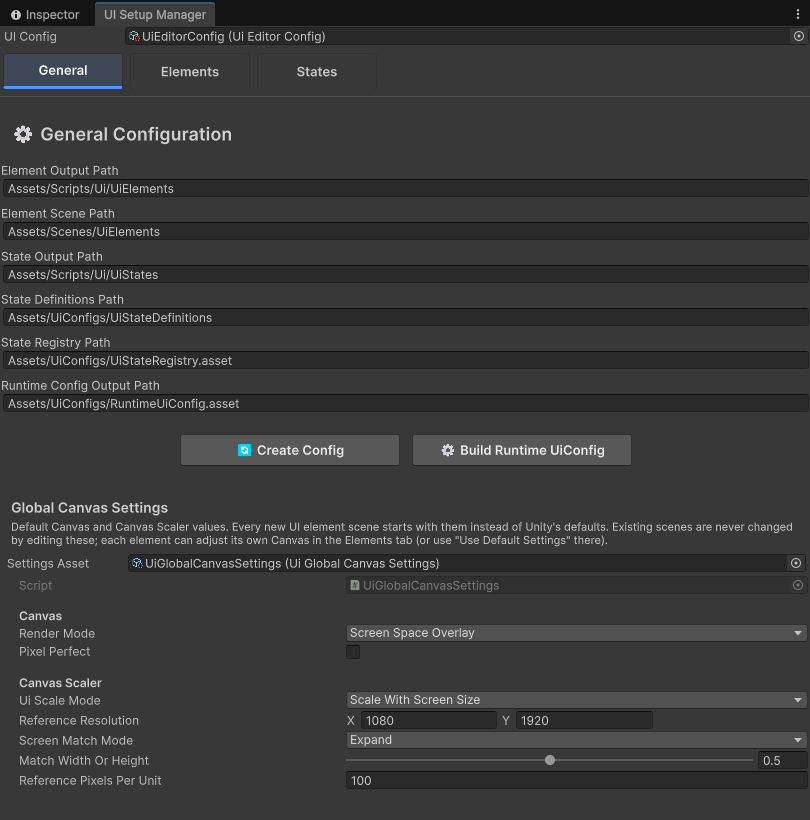 Screenshot: General tab
docs/images/setup-general.pngThe General tab: config paths, namespaces, Global Canvas Settings and Build Runtime UiConfig. - Set
-
Create a UI element
Open the Elements tab and press ➕ New Element. The form opens in the right panel:
Name The class and scene name, e.g. StoreUiElementFrom Existing Scene Optional: convert a scene you already have. Its objects move under the new root, and you are offered a structure fix Include Parameters Class Also generates StoreUiElementParamsfor the data you pass inInclude Reference Class Also generates a StoreUiElementReferencehelperPress Create. You get the script and a scene built to the scene contract. After Unity compiles, the script is attached to
StoreUiElementRootautomatically. An existing script with the same name is never overwritten.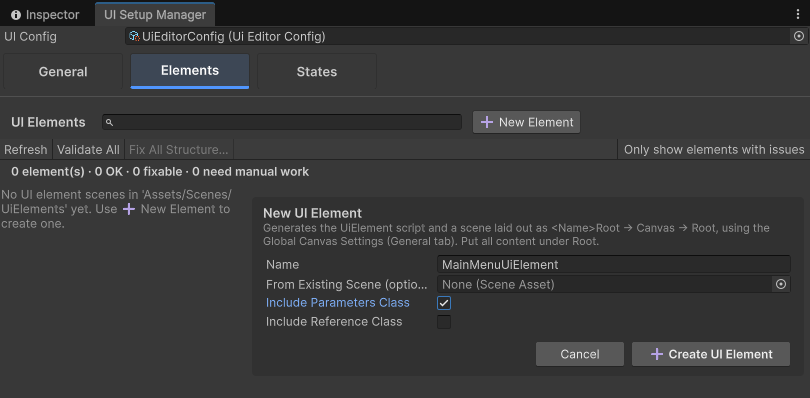 Screenshot: New Element form
docs/images/setup-new-element.pngThe New Element form. -
Build the screen under Root
Open the scene (double-click it in the list). Every element scene has the same shape. Put all of your content under
Root: that object is what animates.- Lay things out with normal anchors; the Canvas Scaler handles screen sizes.
- Nested canvases are fine under
Root(for example a layer with a high sorting order). - Nothing may sit next to
Rootunder the Canvas, or it won't animate. - Popups usually put a full-screen dimmed backdrop as the first child of
Root.
StoreUiElementRoot UiElement script, the only root object └─ Canvas Canvas + CanvasScaler + GraphicRaycaster └─ Root stretched, the animation target ├─ Header ├─ ItemsGrid └─ … all your content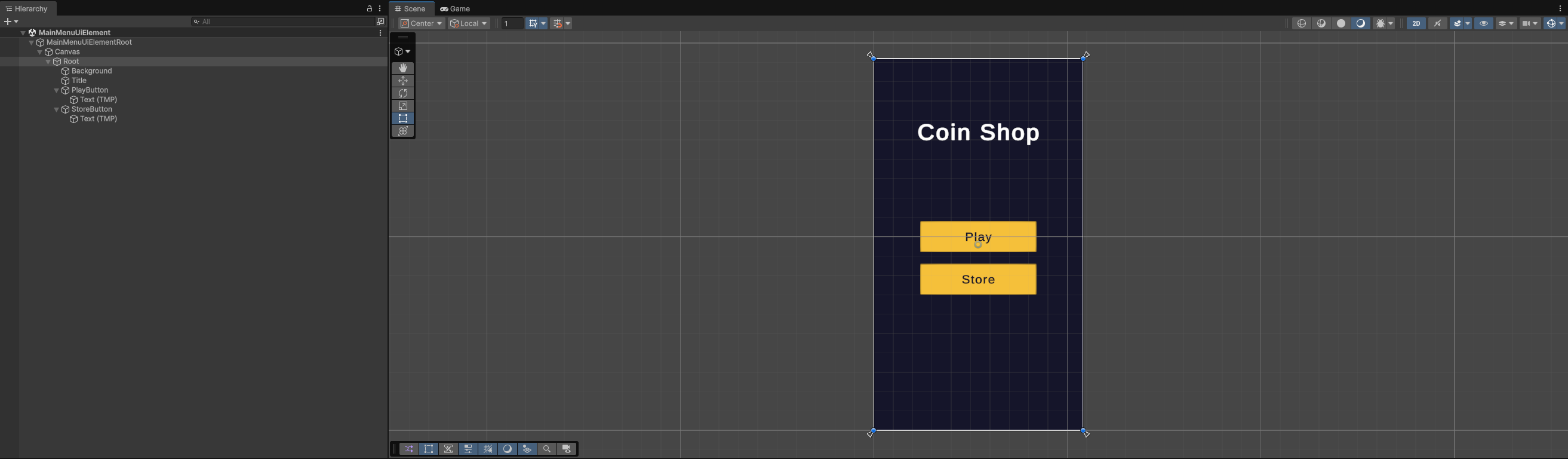 Screenshot: element scene in the Hierarchy and Scene view
docs/images/scene-hierarchy.pngAn element scene: one root, one Canvas, one Root, then your content. -
Pick the show and hide animations
Select the element in the list. In its Animations section, choose a Show and a Hide preset. Each choice shows one line describing what it looks like, and the change is written straight into the scene.
See every preset moving on the Animations tab. Code can still override them for a single call with
UiTransition.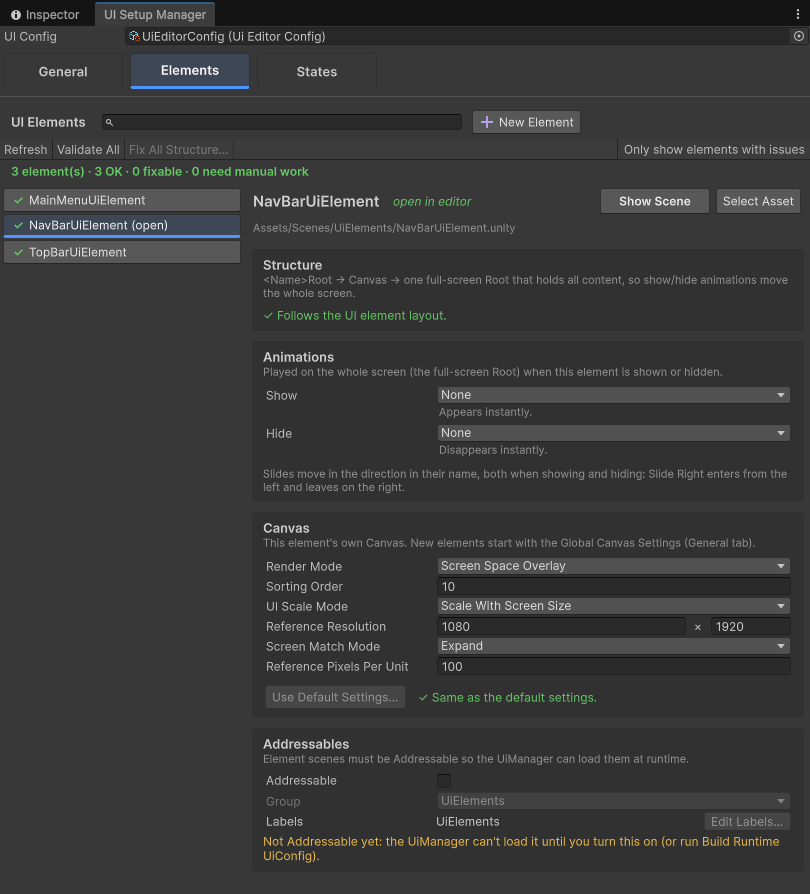
The Elements tab: search, status of every scene, and the selected element's Structure, Animations, Canvas and Addressables settings. (Illustration until the screenshot is added.) -
Validate and fix scene structure
Every scene in the list has a status: ✓ OK, ⚠ fixable, ✖ needs work by hand.
- Validate All logs one line per scene with its issues.
- Fix Structure… (one element) or Fix All Structure… shows exactly what will change, with a Now / After preview of the hierarchy, before it touches anything.
- Fixes only create and reparent objects, with Undo. They never delete anything; what needs manual work is listed under What to fix by hand….
- Only show elements with issues filters the list.
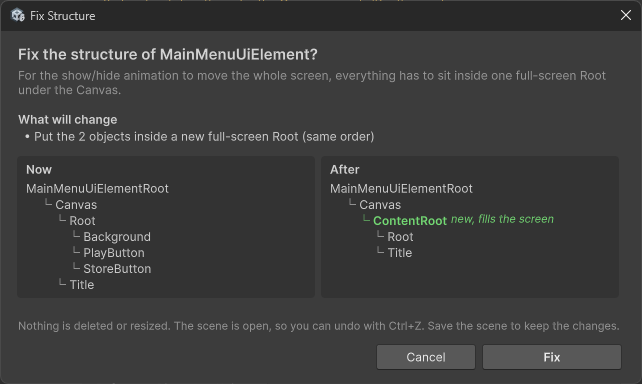 Screenshot: Fix Structure confirmation with the Now / After preview
docs/images/setup-fix-dialog.pngEvery fix asks first and shows the hierarchy before and after. -
Canvas, sorting and Addressables per element
The Canvas section edits this scene's Render Mode, Sorting Order, UI Scale Mode, Reference Resolution, Screen Match Mode and Reference PPU in place. Use sorting order to stack layers, for example screens 0, bars 10, popups 100.
The Addressables section shows whether the scene is Addressable, its group and labels. Build Runtime UiConfig registers every scene a state uses for you.
-
Create a state and add its scenes
Open the States tab. Type the state name next to New state (for example
StoreUiState) and press ➕. It generates the state class: a type marker forShowState<StoreUiState>(). Its name must equal the state key.Select the state and use Add element scene: start typing and pick from the suggestions. Add the screen and every shared element it shows, for example
StoreUiElement,TopBarUiElementandNavBarUiElement.Shared elementsList your nav bar in every tab state. While you switch tabs it stays loaded and on screen, and only the screens animate.
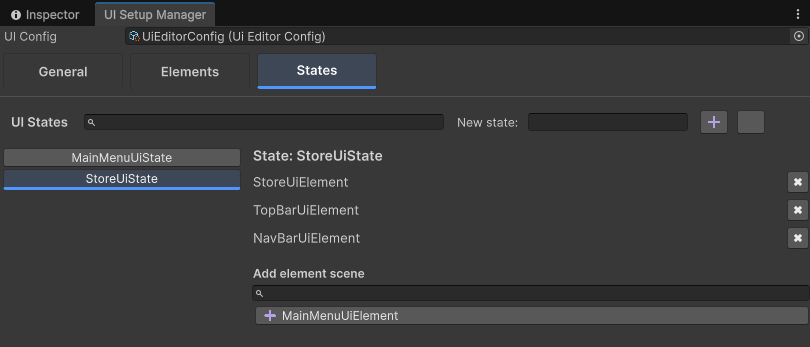 Screenshot: States tab
docs/images/setup-states.pngA state is a named list of element scenes. -
Build the runtime config
Back in General, press Build Runtime UiConfig. It turns your state definitions into the runtime
UiConfig, makes every element scene Addressable (groupUiElements) and registers the config under the addressUiConfig(groupGlobalConfigs).Run it after every changeNew state, renamed scene, added element: build again. The config is generated, so never edit it by hand. For player builds, also build Addressables content.
-
Show it from code and press Play
Initialize once at startup, then show states from anywhere: buttons, game events, your flow controller.
From a buttonprivate async void OnStoreClicked() { try { await UiManager.ShowState<StoreUiState>(); } catch (Exception exception) { Debug.LogError("[MainMenuUiElement] Could not open the store: " + exception); } } -
Add a popup
A popup is a state shown with
additive: true. It goes on top; the screen below stays loaded and visible.HideUIpops it again.- Create
ConfirmPurchaseUiElement, give it a dimmed backdrop and a panel, and set its Canvas Sorting Order above your screens. - Create
ConfirmPurchaseUiStatewith just that scene, and build the runtime config. - Open it with data, close it from its buttons:
Popup// ConfirmPurchaseUiElementParams is generated by "Include Parameters Class". ConfirmPurchaseUiElementParams purchase = new ConfirmPurchaseUiElementParams(); purchase.ItemName = "Neon Blade"; purchase.Price = 250; await UiManager.ShowState<ConfirmPurchaseUiState>(purchase, additive: true); // In the popup's Cancel / Buy handler: await UiManager.HideUI(); - Create
Checklist when something doesn't show
- The state class name equals the state key exactly.
- Build Runtime UiConfig ran after your last change.
- The Addressables play mode script is Use Asset Database, or content is built.
- The element's scene shows ✓ in the Elements tab.
- There is one EventSystem and, for Screen Space – Camera canvases, a camera assigned at runtime.
- The Console has no
[UiManager]errors.