 UI Framework for Unity
How to Build Smooth, Organized Game UI in Unity with a UI Framework
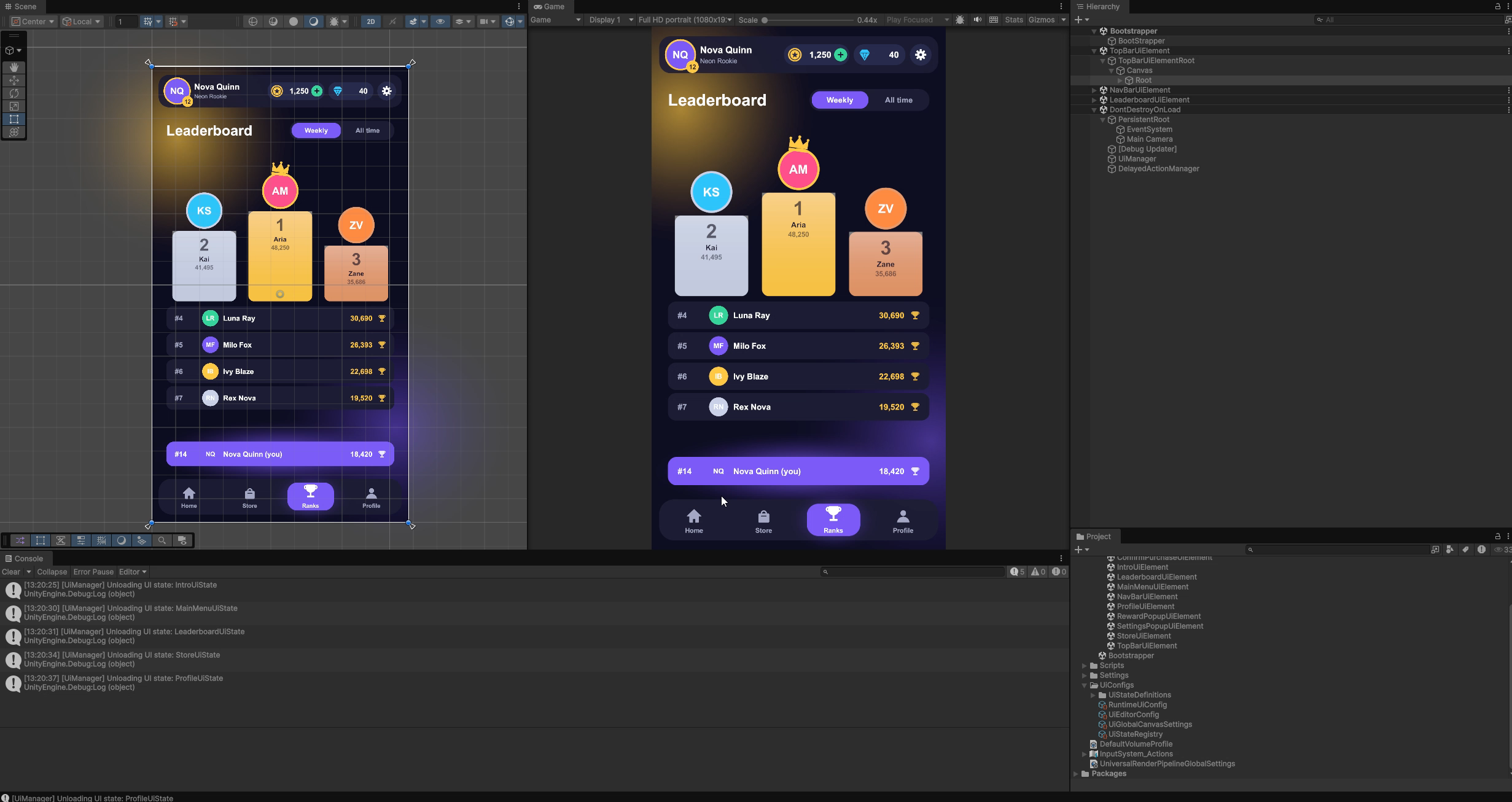
Short answer: give every screen the same shape. Each UI element gets its own Addressable scene and its own script, and every screen is a state on a stack. The free UI Framework for Unity builds that structure for you: an editor window generates the scripts, scenes and config, and one call, await UiManager.ShowState<T>(), shows any screen.
Why game UI turns into a tangle
Almost every Unity project starts its UI the same way, and hits the same wall a few months in:
- One giant UI scene. Every screen lives in one scene or prefab, loads at boot, and two people can't edit it at the same time without a merge conflict.
- SetActive spaghetti. Screens switch each other on and off by hand; a canvas never closes and Back goes to the wrong place.
- A new screen manager for every game. Each project rewrites its own, and only the person who wrote it knows how it works.
- Managers and singletons everywhere. Every screen reaches into
UIManager.Instanceand friends, so start-up order matters and one null breaks a screen. - Motion as an afterthought. Screens pop in, flash an empty frame, or animate differently on every screen.
With AI coding tools the tangle grows faster: they write a lot of code quickly, and without a structure it piles up in places nobody can track.
The structure that keeps UI organized
| Without a framework | With UI Framework | |
|---|---|---|
| A new screen | Build a prefab, wire references, register it by hand | The editor creates the script and the scene and registers them |
| Navigation | SetActive calls spread through the code | await UiManager.ShowState<StoreUiState>() |
| Popups | Sort-order fights and hand-written close logic | Pushed on top with additive: true, closed with HideUI() |
| Shared bars | Copied into every screen, or reloaded with a flicker | Stay loaded and on screen while screens change |
| Memory | Every screen loaded at boot | Scenes load on demand and unload when unused |
| Data | Screens reach into singletons | Passed in through Populate |
| Teamwork | One shared config, edited one person at a time | One file per state, one scene per element: branches merge cleanly |
Build it, step by step
1. Install the package
In Unity, open Package Manager → + → Add package from git URL and paste:
https://github.com/dawaniyah-games/UiFramework.git?path=Packages/com.dawaniyahgames.uiframeworkRequirements: Unity 2022.3 or newer; Addressables is installed with it.
2. Create a screen
Open Window → UI Framework → UI Setup Manager. In General, create the config. In Elements, create MainMenuUiElement: the editor generates its script and its own scene. Build the screen's UI under Root and pick show and hide animations in the list.
3. Make it a state
In States, create MainMenuUiState, add the element scenes it shows (for example a TopBar, the main menu and a NavBar), then press Build Runtime UiConfig.
4. Show it from code
using System;
using UiFramework.Runtime.Manager;
using UnityEngine;

public class GameBootstrap : MonoBehaviour
{
    private async void Start()
    {
        try
        {
            await UiManager.InitializeAsync();
            await UiManager.ShowState<MainMenuUiState>();
        }
        catch (Exception exception)
        {
            Debug.LogError("[Bootstrap] UI failed to start: " + exception);
        }
    }
}
To move to another screen, show another state: await UiManager.ShowState<StoreUiState>(). Shared elements such as the TopBar and NavBar stay on screen and don't re-animate.
5. Give the screen its data
using UiFramework.Core;

public class MainMenuUiElement : UiElement
{
    public override void Populate(object context = null)
    {
        base.Populate(context);

        MenuData data = context as MenuData;
        if (data == null)
        {
            return;
        }

        // Configure the UI from data. May run more than once: keep it idempotent.
    }
}
Pass the data when you show the state: await UiManager.ShowState<MainMenuUiState>(menuData). Screens only show what they are given, so game systems and the backend never reach into the UI.
6. Put a popup on top
// additive: true pushes the popup on top; the screen below stays loaded.
await UiManager.ShowState<RewardUiState>(reward, additive: true);

// Later, from the popup's button:
await UiManager.HideUI();
Why this structure is AI-ready
Every screen has the same shape: its own Addressable scene, its own script, its own place in the state stack. When you ask an AI tool for a new screen, the generated code has a clear place to go, and the editor checks every scene against the same contract and fixes drift in one click. The project stays easy to follow as it grows, whether the code was written by your team or by a tool.
Common mistakes
- "No UI state key registered". The state class name must equal the state key exactly.
- "Failed to locate UiConfig". Run Build Runtime UiConfig, and make sure Addressables content is built (or play mode uses the Asset Database).
- Logic in a
UiStatesubclass never runs. State classes are only type markers; put behaviour in elements. - Data duplicated after switching screens.
Populateruns again when a state reuses a shared scene, so make it idempotent.
FAQ
What is UI Framework for Unity?
A free, open-source (MIT) framework for building Unity game UI from Addressable scenes on a state stack, with shared elements, built-in animations and an editor that generates the scripts, scenes and config for you.
Can several people add screens at the same time?
Yes. Each state is its own asset and each element its own scene and script, so branches add different files and merge cleanly.
Does it work with TextMeshPro and my own components?
Yes. The framework only cares about the scene's shape; anything UGUI can draw works inside it.
Try it in your project
UI Framework for Unity is free and open source. Install it in two minutes and follow the 10-part video tutorial.
Get started Video tutorial GitHub